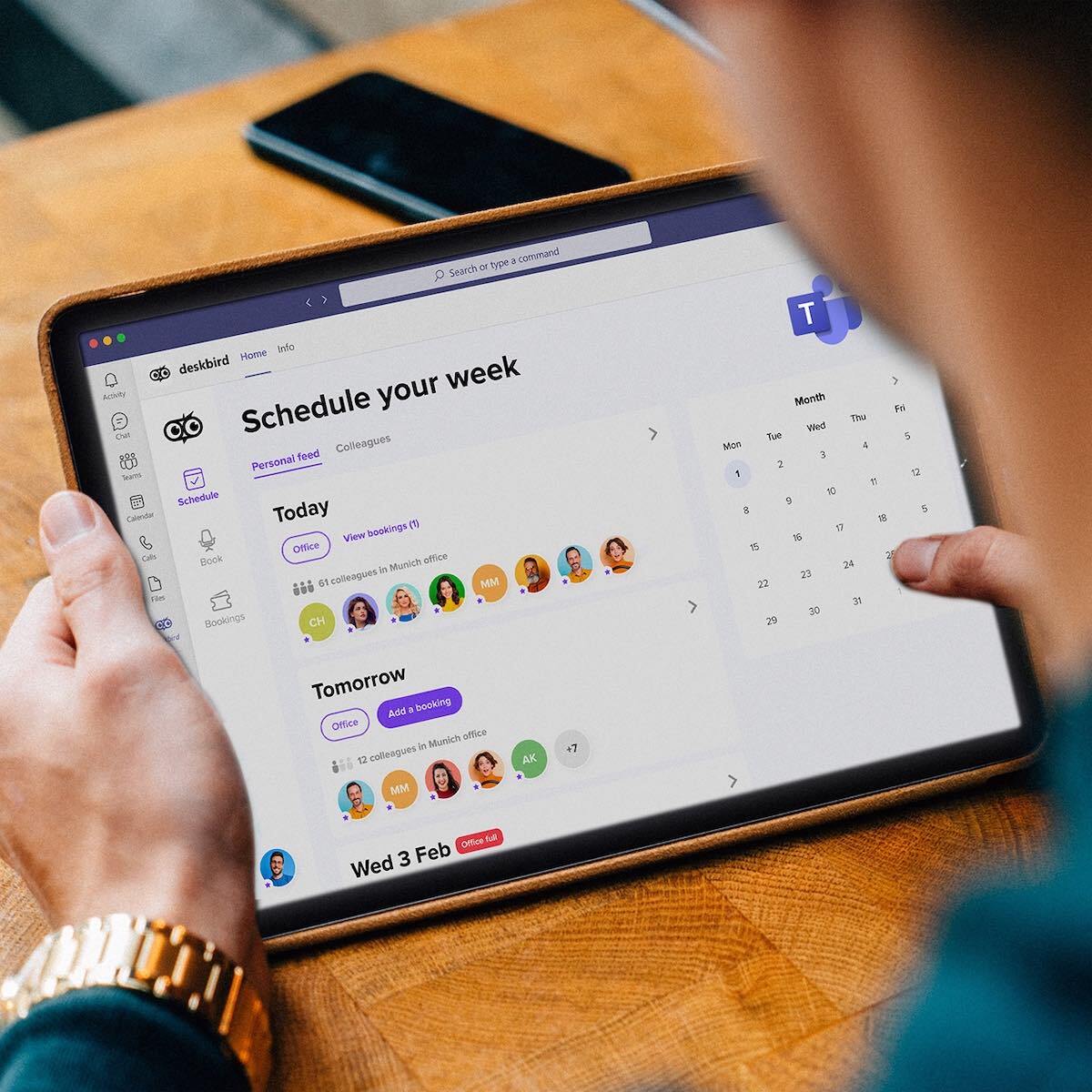
deskbird for Microsoft Teams: Book desks and rooms in Teams
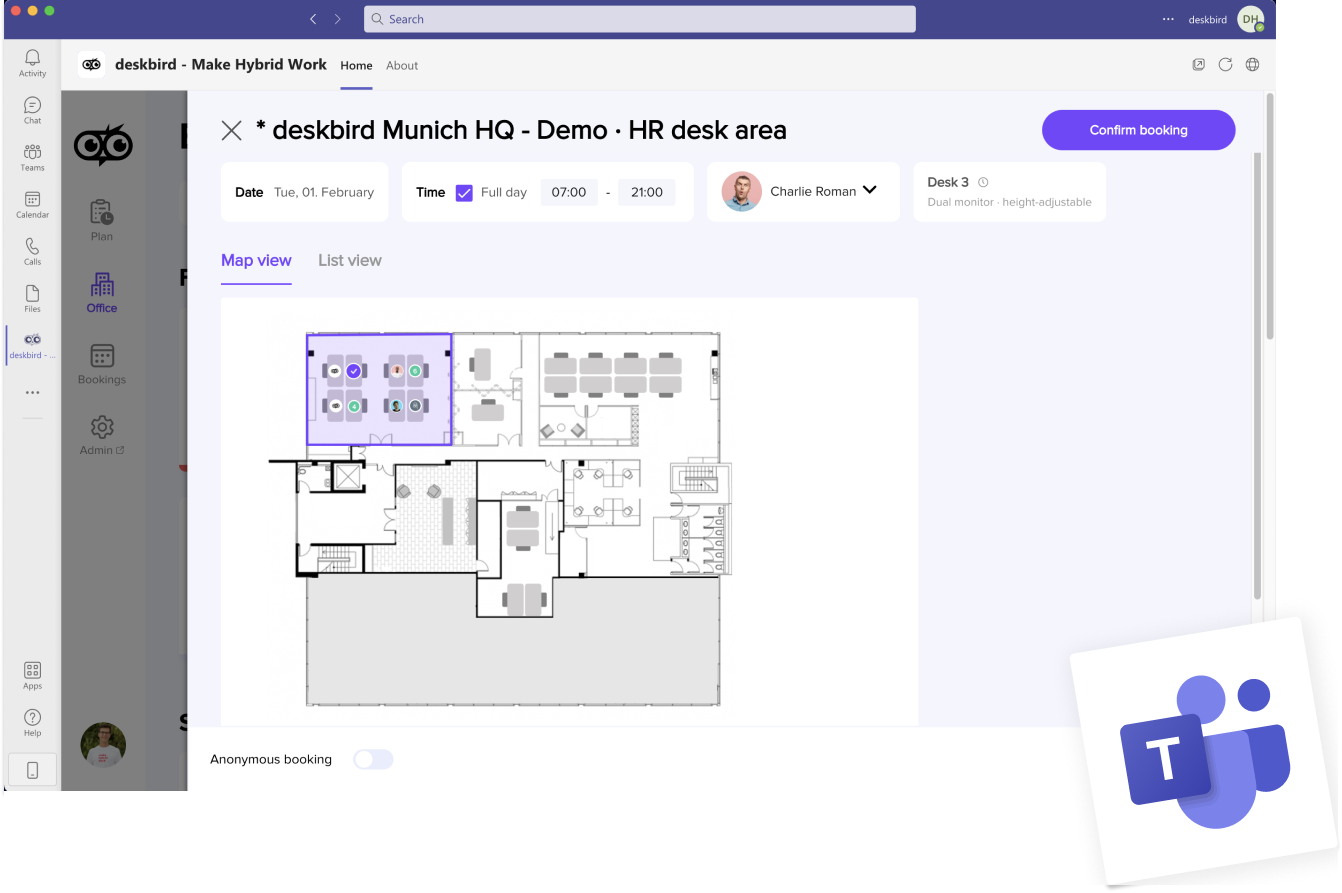
Imagine booking desks, meeting rooms, or parking spaces in just two clicks without leaving Microsoft Teams.
With the deskbird MS Teams App, workplace booking has never been easier or more intuitive. The installation takes just 10 minutes and the app syncs with updates across web and mobile platforms.
Key benefits of the deskbird MS Teams app
- Simplified workplace booking: Reserve desks, rooms, or parking spaces with just a few clicks.
- Cross-platform compatibility: Use deskbird across desktop, mobile, MS Teams, and Slack.
Here's everything you need to know to get started.
Step-by-step installation guide
For individual users
- Open Microsoft Teams and click on the Apps icon in the left sidebar.
- Search for "deskbird" in the search bar.
- Select the deskbird app from the results.
- Click Add to install the app in your Teams environment.
- (Optional) Right-click the deskbird icon in the sidebar and select Pin for quick access.
For Administrators
To ensure the app is accessible to your organization:
- Log into the Microsoft Teams admin center.
- Navigate to Teams apps > Manage apps.
- Search for "deskbird" and ensure it is marked as Allowed under Status.
- Set up policies to make the app available for your organization (detailed below).
Rolling out the app for your team
- In the Teams admin center, navigate to Teams apps > Setup policies.
- Choose the Global (org-wide default) policy or create a custom policy.
- Under Installed apps, click Add apps.
- Search for "deskbird" and add it to the list.
- Save your changes. It may take up to 24 hours for the app to appear for all users.
Pinning the app for maximum visibility
- In the Teams admin center, go to Teams apps > Setup policies.
- Under Pinned apps, click Add apps.
- Search for "deskbird" and add it to the list.
- Use the Move up and Move down options to position deskbird in the navigation bar.
- Save your changes.
Take your workplace management to the next level
The deskbird MS Teams App is the perfect solution for simplifying workplace booking and boosting team collaboration. Its easy integration with Microsoft Teams, user-friendly interface, and cross-platform capabilities make it essential for modern workplaces.
Ready to get started? Install the deskbird app today and transform your workplace experience. For support or assistance, contact us at support@deskbird.com.