
How to book desks and rooms in Microsoft Teams (2 ways)
Employees already live in Microsoft Teams, so asking them to switch apps just to book a desk creates friction that kills adoption. This guide walks through two ways to enable desk and room booking directly inside Teams: Microsoft's native Bookable desks feature and third-party apps like deskbird that add interactive floor plans, check-ins, and detailed analytics.
TL;DR
You can book desks and rooms in Teams using Microsoft's native Bookable desks feature or by installing a third-party app like deskbird.
- Native Bookable desks requires Exchange configuration and offers basic lists without floor plans or check-ins
- Integrated apps like deskbird add interactive maps, auto-release for no-shows, and detailed analytics
- deskbird syncs with both Outlook and Google Calendar, so bookings stay accurate across tools
Why teams want desk and room booking inside Microsoft Teams
Employees already spend their workday in Teams. Switching to a separate app just to book a desk creates friction. Workers toggle roughly 1,200 times per day between applications. When booking happens where work happens, people actually use it.
Here's what you gain by keeping booking inside Teams:
- One workspace: No extra logins or browser tabs to manage
- Real-time visibility: See who's coming in and where they're sitting
- Fewer no-shows: Calendar sync removes canceled reservations automatically
- Better space data: Usage flows into reporting without manual steps, which is critical when global office utilization averages just 54%
This matters most for hybrid teams coordinating in-person days. If you can see your team is coming in Wednesday, you book a nearby desk in seconds.
2 ways to book desks and rooms directly in Microsoft Teams
Two paths exist. You can use Microsoft's built-in features, or you can add a dedicated booking app from the Teams store.
Option 1 uses Microsoft's native Bookable desks and Outlook resource mailboxes. This method relies on Exchange Online. It's free with existing licenses but requires IT configuration.
Option 2 adds a dedicated app like deskbird directly from the Teams store. You get interactive maps, check-ins, and analytics without touching Exchange.
[Table1]
Option 1: Use Microsoft Bookable desks and Outlook resources
Bookable desks is Microsoft's built-in approach. Admins configure desk pools and room mailboxes in Exchange Online, and employees then book through Teams or Outlook.
This works best for organizations deep in Microsoft 365 with dedicated IT support, but the setup reveals significant gaps that impact both adoption and space management.
What you need to get started
The technical requirements are substantial. You need a Microsoft 365 license with Teams and Exchange Online, admin center access at the Global or Teams Admin level, and the ability to create resource accounts in Exchange. Booking policies must be configured separately for rooms. This isn't a quick toggle: it requires dedicated IT resources and Exchange expertise.
How desk and room resources work
Resources live in the Exchange admin center. You create individual desk accounts or "desk pools" where multiple people book a generic spot in an area. This simplifies management but removes granularity: employees can't see or choose specific desks. For rooms, you create resource mailboxes that function as bookable meeting spaces.
Microsoft allows admins to link equipment to desk accounts so employees can filter by hardware like standing desks or extra monitors. But this tagging happens in the backend, not on a visual floor plan. Employees still pick from text-based lists.
Visibility & team coordination
Work location sharing lets colleagues see where someone is working: office, home, or a specific desk. Admins enable this through Teams admin policies, and employees control their own visibility. While this improves coordination, it doesn't solve the core problem—employees still can't see where in the office their teammates are sitting or which desks are near each other.
Testing and rollout limitations
Before rolling out, you verify the experience from a user's perspective. In Teams, employees go to Calendar, select "Book a desk," and pick a date and location from a dropdown. In Outlook, they add a room as a resource to a meeting invite. Bookings appear on calendars, but there's no visual confirmation of desk location, no check-in process, and no way to verify someone actually showed up.
Where analytics fall short
After the system runs, admins can access basic data in Teams admin center and Exchange reports. But here's the critical gap: native reports show booking frequency, not actual utilization. You see how many times a desk was reserved, but you won't know if booked desks actually get used. There are no heat maps, no check-in data, and no no-show rates. When you're trying to right-size real estate or justify office space decisions, this data gap becomes expensive.
The result: a functional booking system that requires significant IT effort but lacks the visibility, automation, and analytics hybrid teams need to manage space effectively.
Option 2: Use deskbird to book desks and rooms inside Microsoft Teams
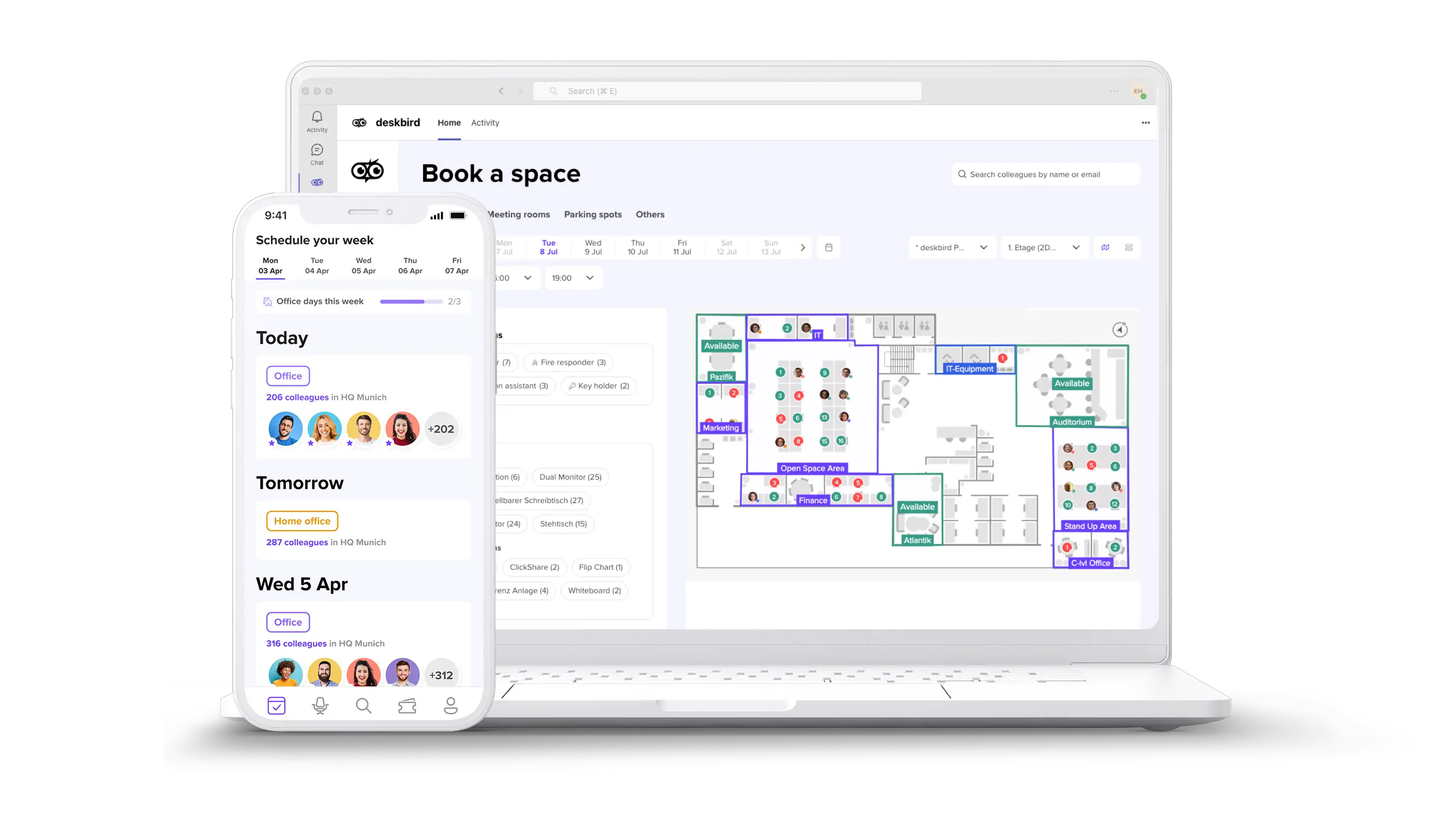
deskbird is a workplace management app that installs directly in Teams. Unlike native Bookable desks, it gives employees interactive floor plans and real-time availability. Check-in and auto-release features help manage space efficiently.
Install deskbird in Microsoft Teams
Setup is faster than configuring Exchange resources:
- Find deskbird in the Teams app store
- IT admin approves the app for the organization
- Connect to your identity provider (SSO supported)
- Sync with Outlook or Google Calendar
This takes minutes, not days. No PowerShell scripts required.
Book a desk from a Teams tab
The desk booking experience is visual-first in deskbird. Instead of scrolling through text-based desk names, you interact with a map.
Open the deskbird tab in Teams. You see an interactive floor plan with real-time availability: green means open, red means booked. Filter by equipment, floor, or neighborhood, then click to book. The confirmation syncs to your calendar instantly.
Book a meeting room from a Teams tab
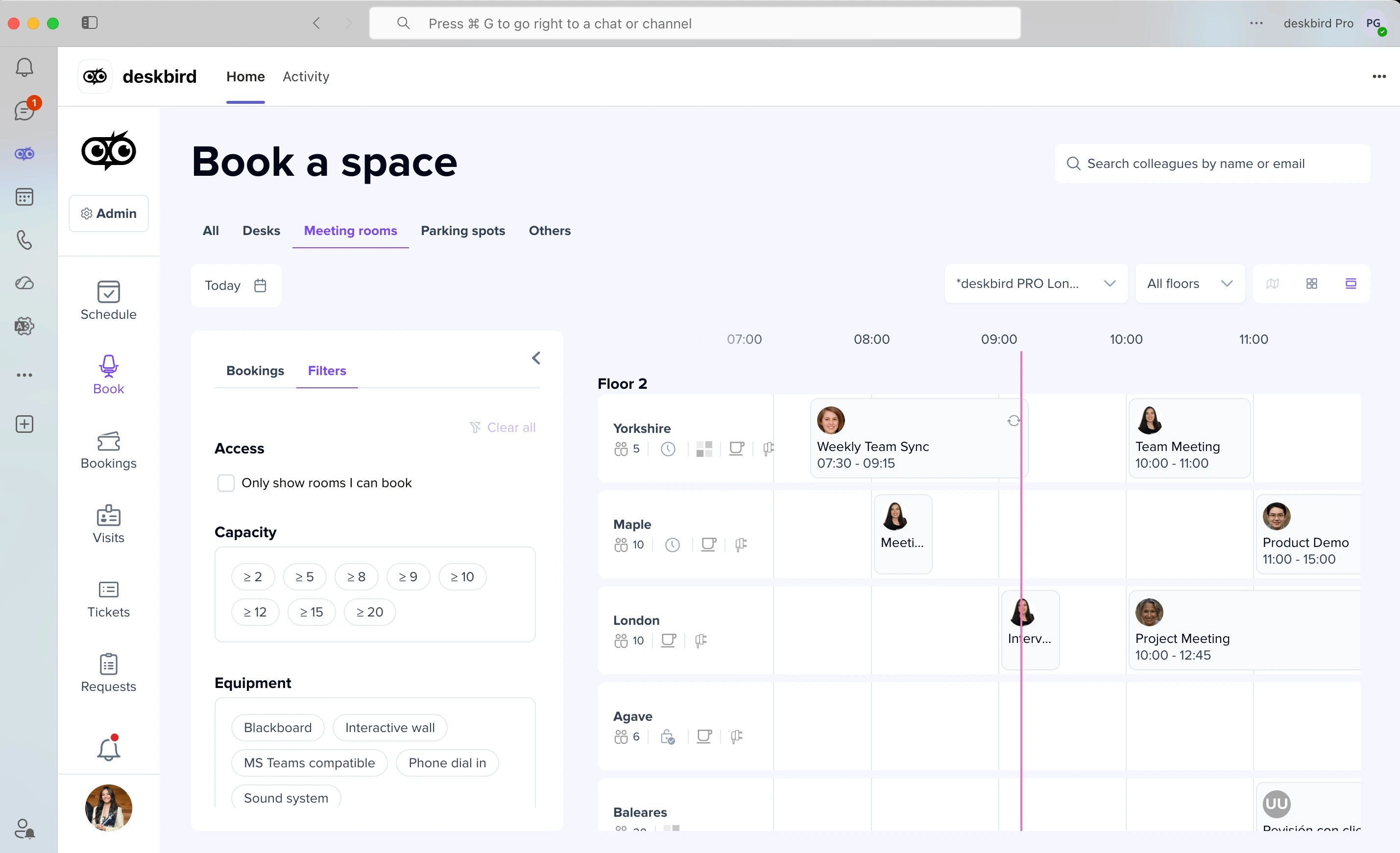
Room booking follows the same flow. Browse available rooms by capacity and equipment like video conferencing or whiteboards. See real-time availability across locations, book directly, and invite attendees. The confirmation appears in everyone's calendar.
Keep Outlook and Google Calendar sync reliable
Double bookings happen when the booking tool doesn't talk to the calendar. deskbird solves this with bidirectional sync.
- Teams to Calendar: Bookings made in deskbird appear in your personal calendar
- Calendar to App: Bookings made in Outlook or Google show up in deskbird
- Updates: Cancellations update everywhere automatically
This eliminates ghost bookings where a room appears free in one system but booked in another.
Reduce ghost bookings with check-ins and auto-release
A common hybrid office problem: employees book desks "just in case" but never show up. The space sits empty while others scramble to find a spot.
deskbird handles this with automation, keeping floor plans accurate and making sure booked space actually gets used.
- Check-in reminders: Notifications prompt employees to confirm arrival
- QR code check-in: Scan at the desk to confirm presence
- Auto-release: Unclaimed desks become available after a set time
Bookable desks vs deskbird for desk and room booking in Teams
The right choice depends on your needs. Native works for simple setups, while deskbird is built for active hybrid management.
[Table2]
If you need floor plans, check-ins, or detailed analytics to right-size your real estate, deskbird is the better fit.
TwentyCi, an advertising services company, needed a tool that worked with their Microsoft ecosystem after transitioning from Slack to Teams. After implementing deskbird, they achieved 80-85% adoption without chasing employees.
I set myself a reminder and sometimes book my schedule a month ahead. It's so straightforward: you click-click, and you're done! I have set up everybody, allocated people to desks, and don't have to think about it anymore.
Rob Taylor, Head of People, TwentyCi
What to look for in a desk and room booking app for Microsoft Teams
When evaluating a booking solution, focus on features that drive adoption and provide useful data.
- Interactive floor plans: Employees should see where desks are on a map, not just a list
- Real-time availability: Status updates instantly when someone books or cancels
- Calendar sync: Bidirectional with Outlook and Google Calendar
- Check-in and auto-release: Reduces no-shows and keeps data accurate
- Filtering: By equipment, capacity, floor, or team neighborhood
- Notifications in Teams: Reminders without leaving the app
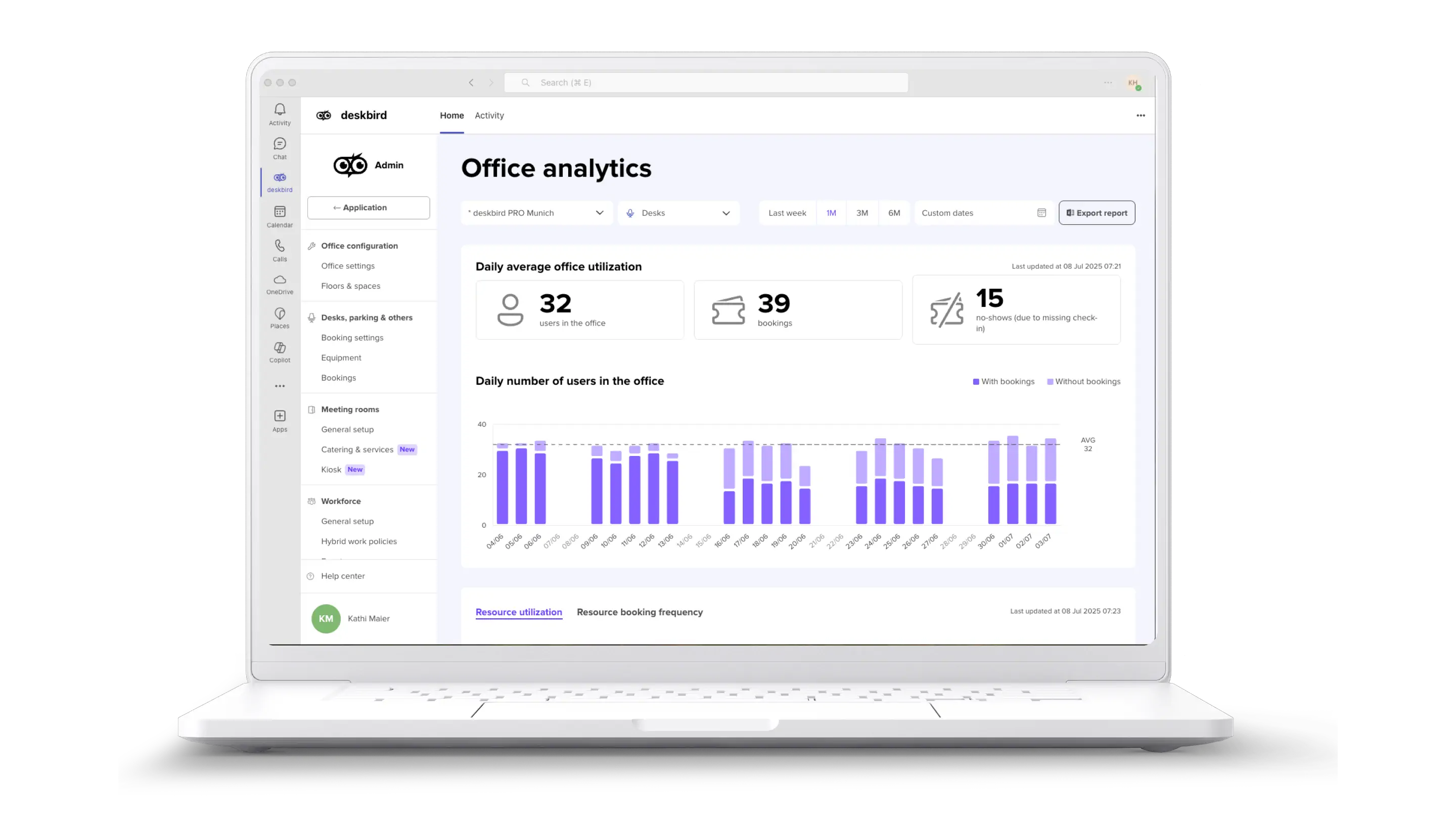
- Analytics: Utilization, peak days, no-show rates
- Privacy and security: GDPR compliance, SOC 2 Type II certification, ISO 27001
Teams becomes the front door to the office
When booking happens inside Teams, the office becomes intentional. Employees plan days around collaboration, not habit, and organizations get accurate data on how space is actually used. The result is less app fatigue with one tool for communication and office coordination, fewer no-shows as check-ins and auto-release ensure booked space gets used, and better space decisions driven by real utilization data.
deskbird takes minutes to set up in Teams and works where your people already are. No Exchange config. No extra apps. Just an office that runs.

Frequently Asked Questions
Can guests or external visitors book desks in Microsoft Teams?
Native Bookable desks does not support external guests. deskbird offers visitor management as a separate feature that integrates with desk booking, allowing them to reserve desks as well.
How do I prevent double bookings between Teams and Outlook?
What happens if someone books a desk but doesn't show up?
Can I set booking rules like maximum days in advance or restricted access?
Does deskbird work with Google Calendar as well as Outlook?
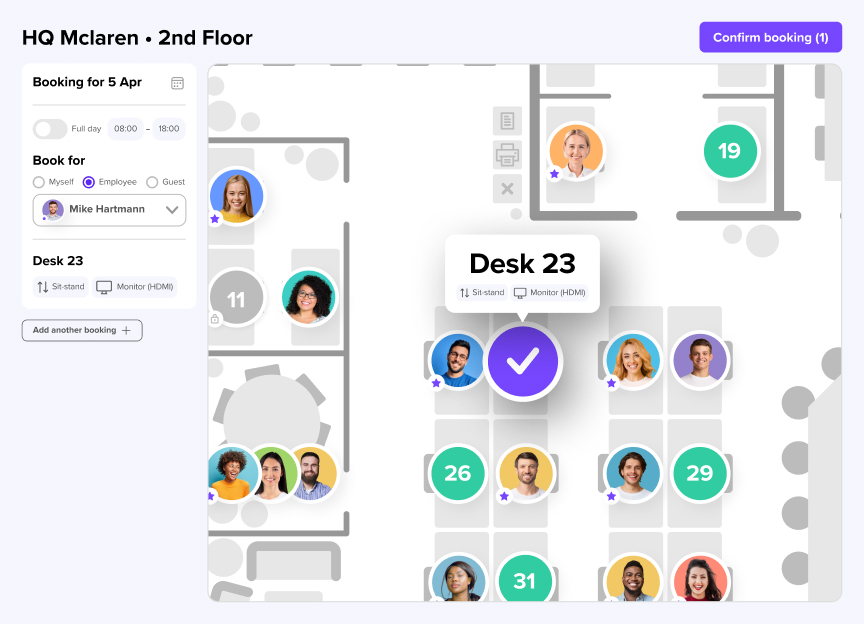
See how desk booking works inside Teams
- Interactive floor plans show real-time desk availability across your office
- Check-in and auto-release keep booked space from sitting empty
- Setup takes minutes, not days, with no Exchange configuration required
